
Guide to Tracking Your Existing NPS or PRAN

The National Pension System (NPS) is a crucial tool for securing your retirement future. If you've already opened an NPS account and been assigned a Permanent Retirement Account Number (PRAN), keeping tabs on its performance and details is essential. PensionBox offers a streamlined, user-friendly platform to consolidate and monitor all your pension assets, including your existing NPS/PRAN. This guide will walk you through the simple steps to successfully track your existing NPS or PRAN using the PensionBox platform.Prerequisites Before you begin, ensure you have the following information handy:
- Permanent Retirement Account Number (PRAN): This 12-digit unique number is essential.
- POP SP Code: This is a 7-digit number that you can find in your previous NPS transaction statement, available in your email.
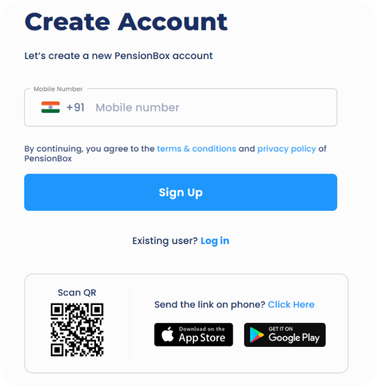
Step 1: Sign up and Create Your Account
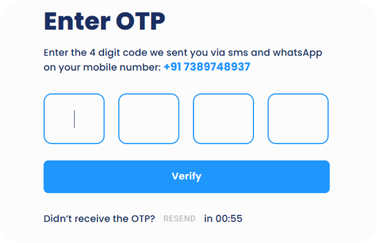
Enter your mobile number to register. You’ll receive a One-Time Password (OTP) via WhatsApp and SMS — enter it to verify your number and continue.
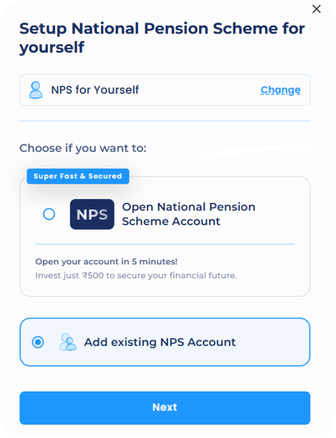
Step 2: Choose ‘Add Existing Account’
Select Add Existing Account option and Simply click on Next to continue.
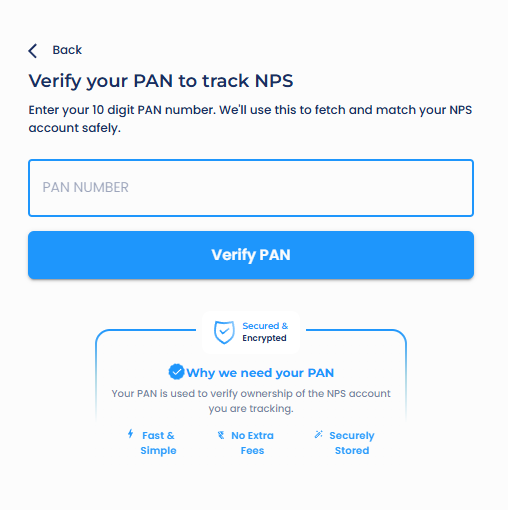
Step 3:Verify Your PAN
Enter your PAN number to verify account ownership and securely locate your existing NPS account for tracking.
Step 4: Enter PRAN Number
Enter your PRAN (Permanent Retirement Account Number), your unique 12-digit NPS ID.
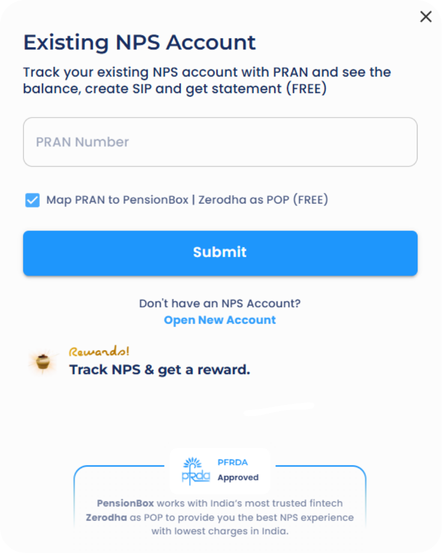
Step 5: Account Shift Completed
Your existing NPS account has now been successfully shifted to PensionBox. You can now manage your NPS on PensionBox and set your contribution using the PensionBox Contribution Setup Guide.
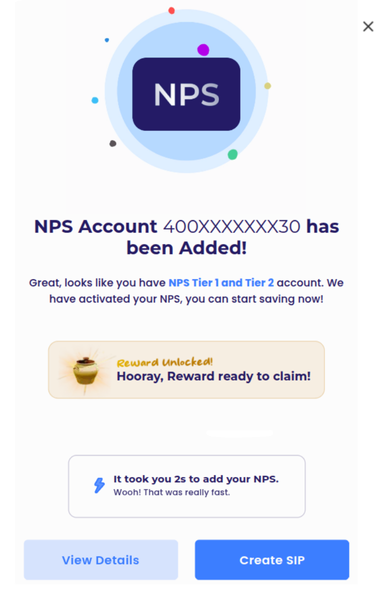
CRA Shifting (If Applicable)
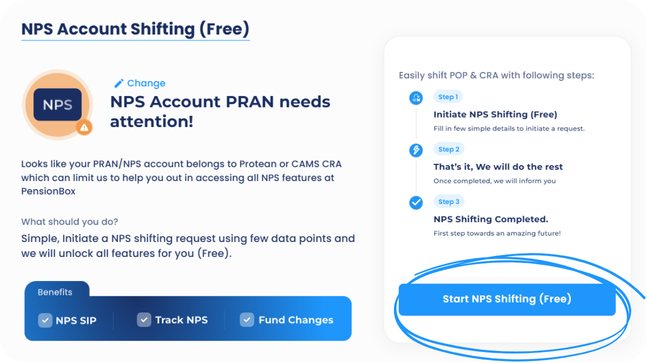
Note : If your CRA (Central Recordkeeping Agency) is different from your company’s CRA, you’ll need to shift it first. For example, if your current CRA is NSDL (Protean), you must move it to your company’s CRA, KFintech.
Step 5: Start CRA Shifting
Click on Start NPS Shifting Free to begin the CRA transfer process.
Step 6 – Select Account Type
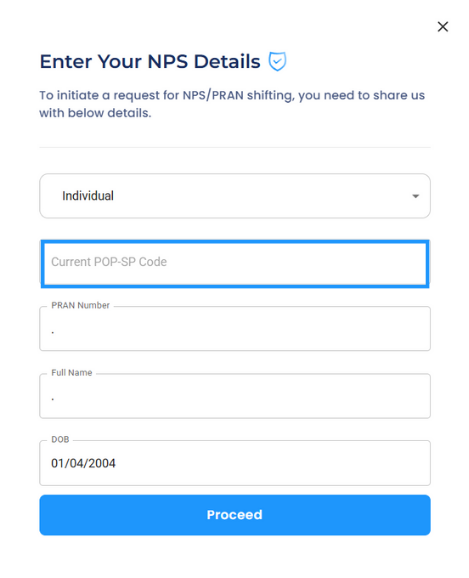
Choose the correct account type – Corporate, Individual, or Other Category – as per your existing account.
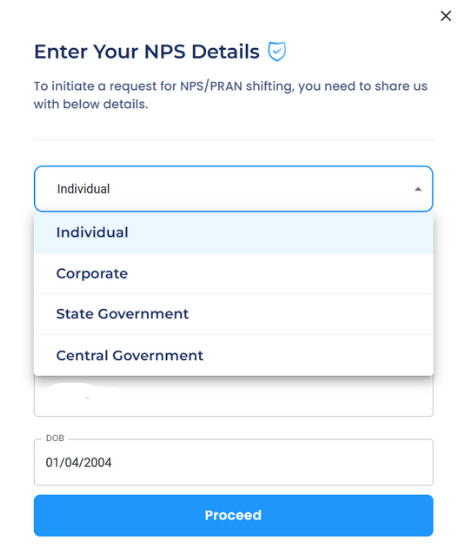
Step 7 – Enter POP-SP Registration Number
Enter your 7-digit POP-SP Registration Number, found in your previous NPS transaction statement or email and fill the other basic details and click on Proceed
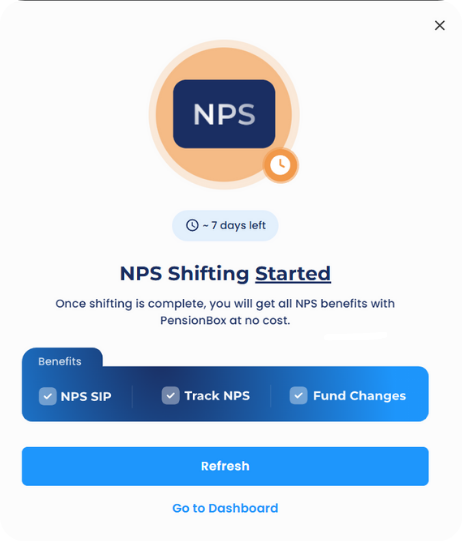
Step 8 – CRA Shift Completed
Your CRA shift request has been successfully submitted. The transfer may take up to 7 working days. After completion, manage your account on PensionBox.
Congratulations! You’ve successfully completed the NPS account shifting process on PensionBox. From here, you can easily manage your NPS- check your balance, and track your investment performance — all in one place.
2,00,000+ Stories
Hope they inspires you as well.

their NPS stories for a golden retirement.







PensionBox simplifies the National Pension System(NPS), the government's pension scheme for private employees both for retail users and HRs/companies.
If you don’t have an NPS account, you can simply open your pension account within 2 minutes and if you have NPS PRAN already, you will be able track, invest and manage everything free of charge with best user experience.
We never touch or hold your money directly, your investments go safely to your chosen pension fund through approved channels.
We are built with Zerodha as POP , ensuring transparency, data security, and peace of mind. Your retirement savings are protected by regulation and secured by technology.
That’s why, PensionBox brings transparency, zero charges, timely support and freedom to select any pension fund so that you get the best experience investing in NPS & be better future ready.
That’s not it, we help you & your company together to maximise contribution and tax savings with minimal charges & best user experience.
If you are an existing zerodha user then you get a fast login or sign up using kite ID.
Once you are onboarded with kite ID, you get free access to
- Open NPS in 2 minutes
- Track existing NPS
- POP shift or CRA shifting
- Invest in one time or create SIP in NPS
- Withdraw NPS requests & instant withdraw tier 2
- Create your dream retirement plan
- Open NPS Vatsalya for your kid
- Share with HR (To unlock more tax benefits)
- Employer Contribution:
- Contributions made by your employer to your NPS account are tax-free up to 14% of your basic salary under Section 80CCD(2). Do connect us with your HR to enable this for you.
Tax Benefits in Old Tax Regime - Self-Contribution:
- Deduction up to ₹1.5 lakh under Section 80C.
- Additional deduction of ₹50,000 under Section 80CCD(1B) — exclusive to NPS investments!
- This allows you to claim a total deduction of up to ₹2 lakh every year on your NPS contributions.
- Employer Contribution:
- Contributions made by your employer to your NPS account are tax-free up to 10% of your basic salary (Basic + DA) under Section 80CCD(2). Do connect us with your HR to enable this for you.
- This is over and above your personal deduction limits, giving you extra tax efficiency.
Feel free to book a free call to learn more about NPS, NPS Vatsalya, Corporate NPS & PensionBox or contact the support team.