
How to OpenYour Corporate NPS Account : A Step-by-Step Guide

Setting up your Corporate National Pension System (NPS) account is now a seamless online process. Your employer has invited you to join PensionBox, marking a significant step towards securing your financial future. The NPS is a voluntary, long-term retirement savings scheme designed to provide financial security in your retirement years. This guide will walk you through the simple steps to get your NPS account started.
SIGN UP PROCESS
Step 1: Sign Up Through Your Employer’s Link
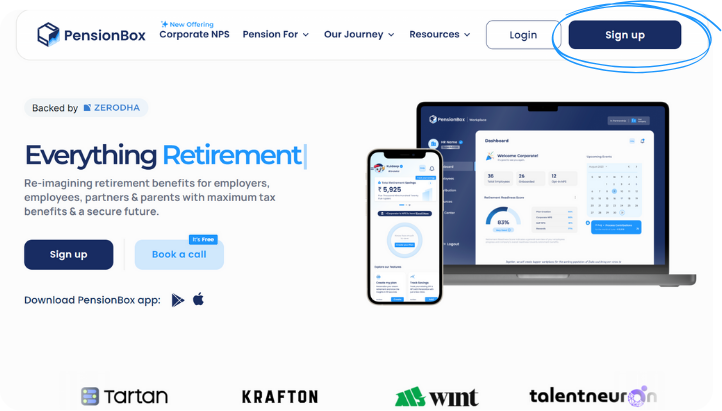
Start by clicking on the sign-up link shared by your HR or company. Once you’re on the portal, click “Sign Up” to begin the onboarding process.
Step 2: Create Your Account
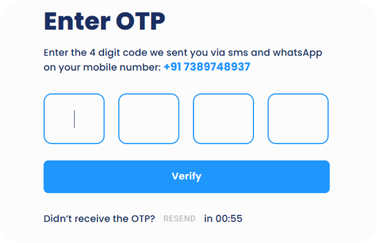
Enter your mobile number to register. You’ll receive a One-Time Password (OTP) via WhatsApp and SMS — enter it to verify your number and continue.

Corporate NPS Invitation
Step 1: Accept Your Corporate NPS Invitation
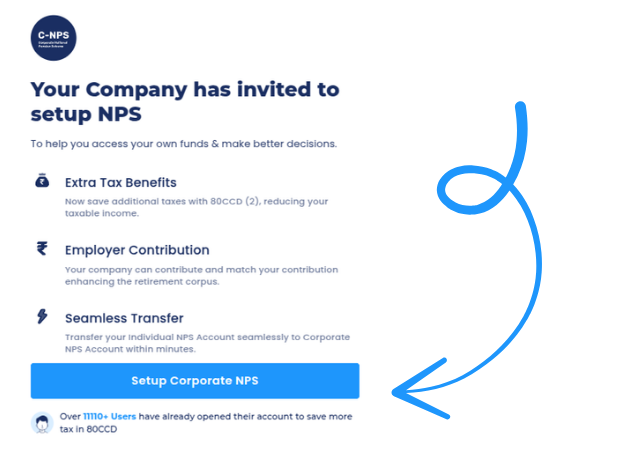
After signing up, you’ll see a pop-up invitation from your employer to set up your Corporate NPS (CNPS) account. Click “Setup Corporate NPS” to start your registration
Step 2: Complete your onboarding with Zerodha kite account
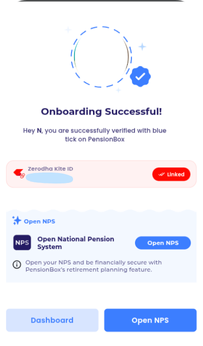
Complete your KYC with Kite by clicking on “Open NPS.”
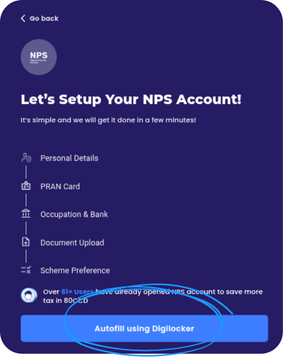
Step 3: Use DigiLocker for Autofill
Select “Autofill using DigiLocker” to automatically fetch your details from Aadhaar.
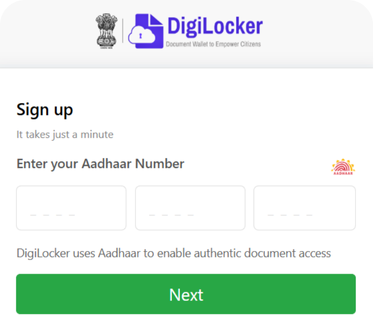
Step 4: Enter Aadhaar Number
Type in your Aadhaar number for the DigiLocker autofill process.
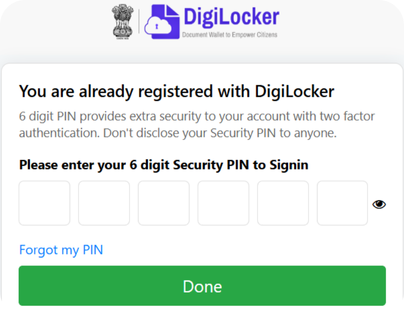
Step 5: Enter DigiLocker PIN
Input your DigiLocker PIN. If you’ve forgotten it, click “Forgot my PIN” to reset it.
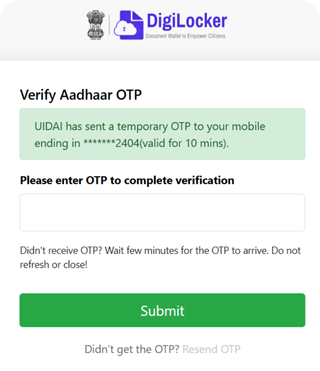
Step 6: Verify with OTP
Enter the OTP received on your registered mobile number to continue.
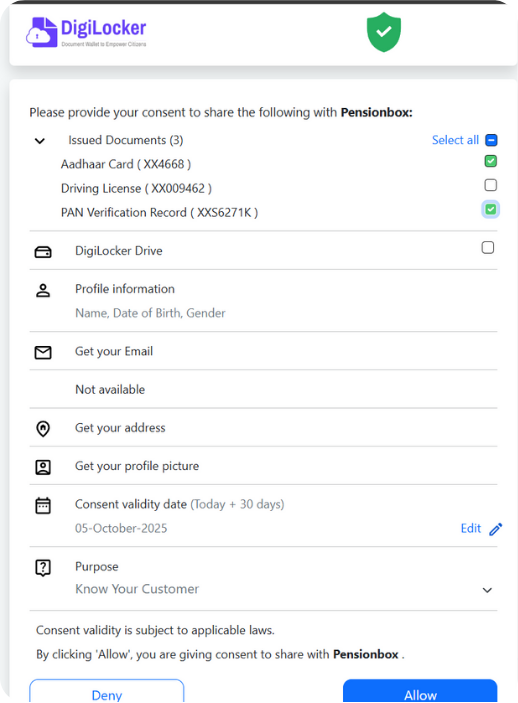
Step 7: Approve Aadhaar & PAN Access
Tick the Aadhaar and PAN verification checkboxes, then click “Allow” to confirm.
Account Setup
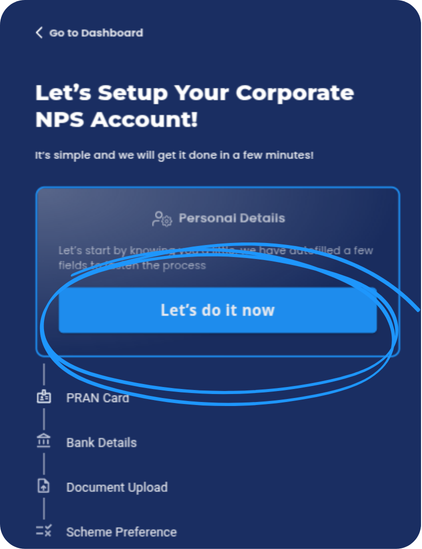
Step 1: Start Account Opening
Click on “Let’s Do It Now” to begin your account setup.
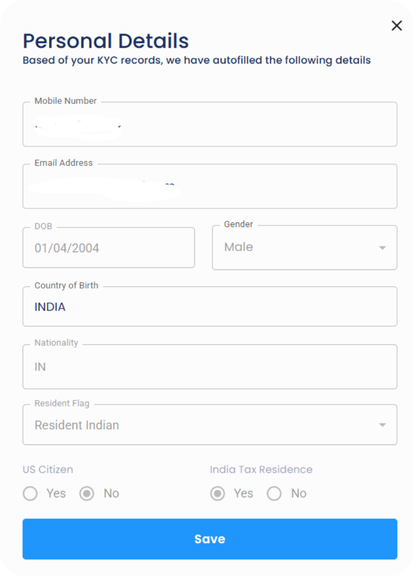
Step 2: Verify Personal Information
Your personal details will be automatically filled in. Review them and click Save to proceed
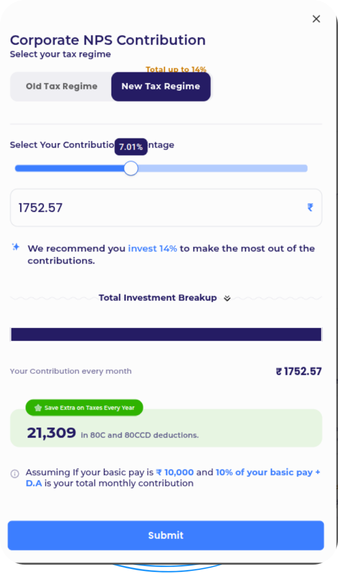
Step 3: Set Contribution & Tax Regime
Choose your contribution percentage and tax regime: * New Tax Regime: Max. 14% of basic salary. * Old Tax Regime: Max. 10% of basic salary.
Step 4: Fill in Personal Details
Provide the required personal details to continue your registration.
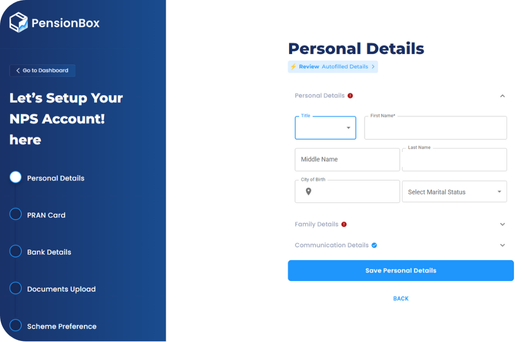
Step 5: Add Family Details
Use the dropdown to enter your family information for record purposes.
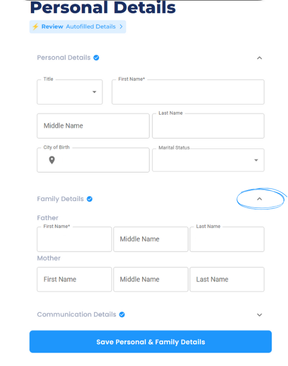
Step 6: Confirm Communication Address
Verify your address and click Save and Next to proceed
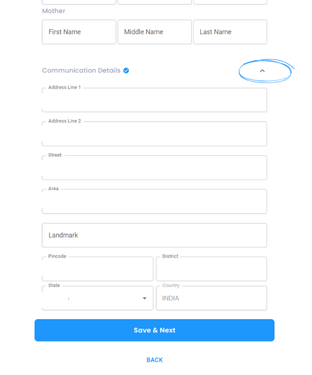
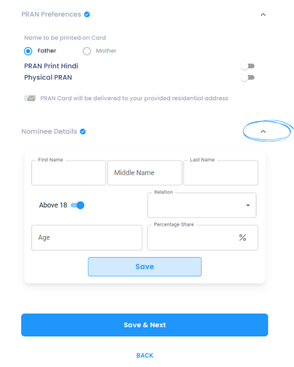
Step 7: Choose PRAN Card Delivery Option
Turn on the toggle if you’d like a physical PRAN card sent to your communication address.
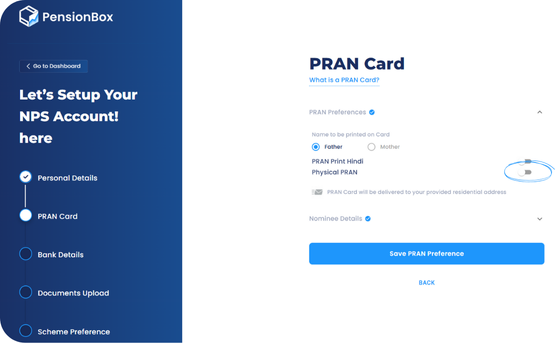
Step 8: Add Nominee Details
Select and enter your nominee details, then click Save and Next.
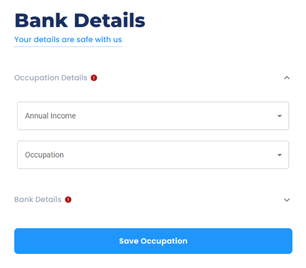
Step 9: Provide Income & Occupation
Choose your annual income range and occupation from the dropdown list.
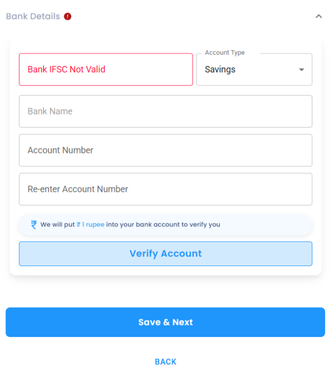
Step 10: Enter Bank Details
Provide your bank account details (savings, salary, or current). You can update this later if needed.”
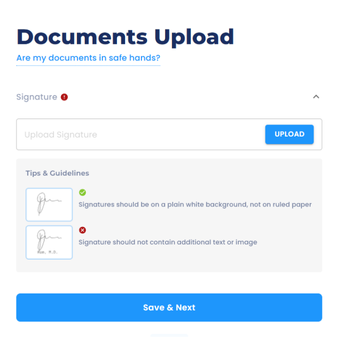
Step 11: Upload Signature
Upload your signature image in JPG or PNG format. (PDFs are not accepted.)
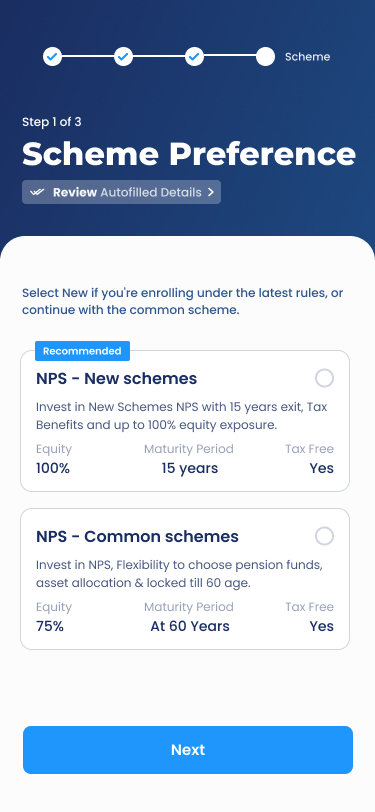
Step 12: Select Scheme
Please select the scheme you wish to enroll in. Once selected, click Next to proceed.
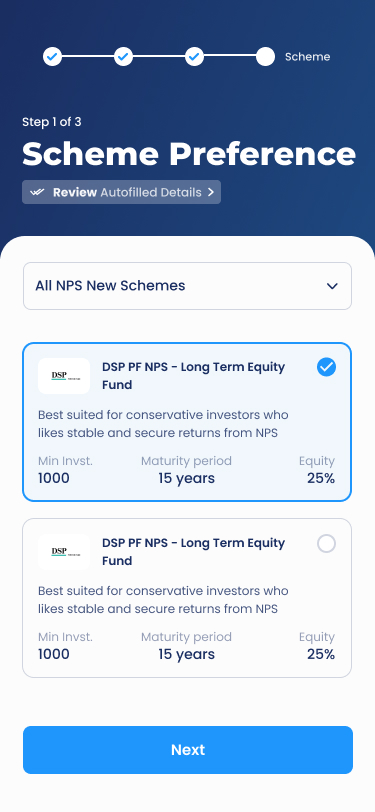
Step 13: Fund Selection & Confirmation (If New Schemes)
Select the scheme based on your preferred Pension Fund Manager (PFM) and desired equity exposure, then click Next to continue.
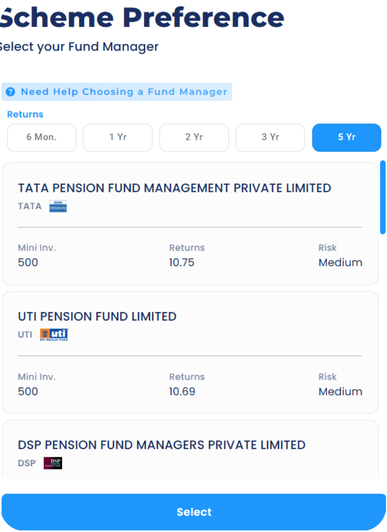
Step 13: Select Pension Fund Manager (If Common Schemes)
Choose your preferred Pension Fund Manager (PFM) from the list of 11 options
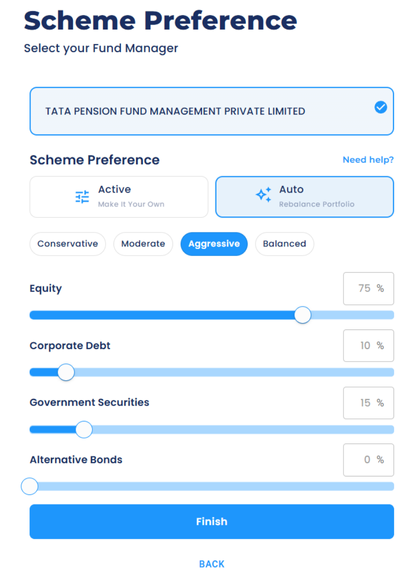
Step 14: Set Investment Mode
Select how you’d like to invest:
- Active Mode: Customize your asset allocation.
- Auto Mode: Choose between Conservative, Moderate, or Aggressive investor types.
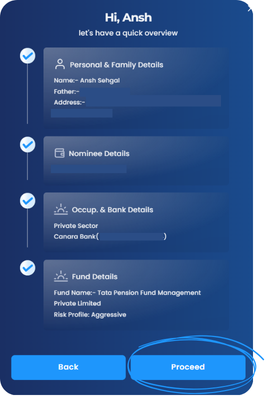
Step 15: Review & Proceed
Carefully review your details, then click “Proceed” to submit your application.
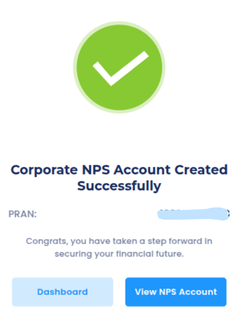
Step 16: NPS Account Successfully Created
Account Created 🎉 Congratulations! Your NPS account has been successfully created.
After setting up your NPS account, it is important to regularly monitor and manage your investments. PensionBox provides you with a user-friendly dashboard to track your contributions, check your account balance, and make changes to your investment preferences.
Setting up your corporate NPS account on PensionBox is a crucial step towards building a secure financial future for your retirement. By following these simple steps, you can ensure that you and your family are well-prepared for life after retirement. If you have any questions or need assistance with setting up your NPS account, don't hesitate to reach out to the PensionBox support team for help.
Corporate NPS = extra tax savings for your employees, zero cost to your company. Under Section 80CCD(2) it’s deductible over and above the ₹1.5L 80C limit. PensionBox sets it up end-to-end. Offer Corporate NPS to your team →
2,00,000+ Stories
Hope they inspires you as well.

their NPS stories for a golden retirement.







PensionBox simplifies the National Pension System(NPS), the government's pension scheme for private employees both for retail users and HRs/companies.
If you don’t have an NPS account, you can simply open your pension account within 2 minutes and if you have NPS PRAN already, you will be able track, invest and manage everything free of charge with best user experience.
We never touch or hold your money directly, your investments go safely to your chosen pension fund through approved channels.
We are built with Zerodha as POP , ensuring transparency, data security, and peace of mind. Your retirement savings are protected by regulation and secured by technology.
That’s why, PensionBox brings transparency, zero charges, timely support and freedom to select any pension fund so that you get the best experience investing in NPS & be better future ready.
That’s not it, we help you & your company together to maximise contribution and tax savings with minimal charges & best user experience.
If you are an existing zerodha user then you get a fast login or sign up using kite ID.
Once you are onboarded with kite ID, you get free access to
- Open NPS in 2 minutes
- Track existing NPS
- POP shift or CRA shifting
- Invest in one time or create SIP in NPS
- Withdraw NPS requests & instant withdraw tier 2
- Create your dream retirement plan
- Open NPS Vatsalya for your kid
- Share with HR (To unlock more tax benefits)
- Employer Contribution:
- Contributions made by your employer to your NPS account are tax-free up to 14% of your basic salary under Section 80CCD(2). Do connect us with your HR to enable this for you.
Tax Benefits in Old Tax Regime - Self-Contribution:
- Deduction up to ₹1.5 lakh under Section 80C.
- Additional deduction of ₹50,000 under Section 80CCD(1B) — exclusive to NPS investments!
- This allows you to claim a total deduction of up to ₹2 lakh every year on your NPS contributions.
- Employer Contribution:
- Contributions made by your employer to your NPS account are tax-free up to 10% of your basic salary (Basic + DA) under Section 80CCD(2). Do connect us with your HR to enable this for you.
- This is over and above your personal deduction limits, giving you extra tax efficiency.
Feel free to book a free call to learn more about NPS, NPS Vatsalya, Corporate NPS & PensionBox or contact the support team.